> For the complete documentation index, see [llms.txt](https://docs.holoworld.com/llms.txt). Markdown versions of documentation pages are available by appending `.md` to page URLs; this page is available as [Markdown](https://docs.holoworld.com/api-guide/chat-api.md).
# Chat API
Generate a dynamic chat response with MCP support for an agent using the Holoworld Chat API.
#### Authentication
All API requests require authentication using an API key. The API key should be included in the request headers as `x-api-key`.
To obtain an API key:
1. Register for an account at [Holoworld](https://app.holoworld.com/)
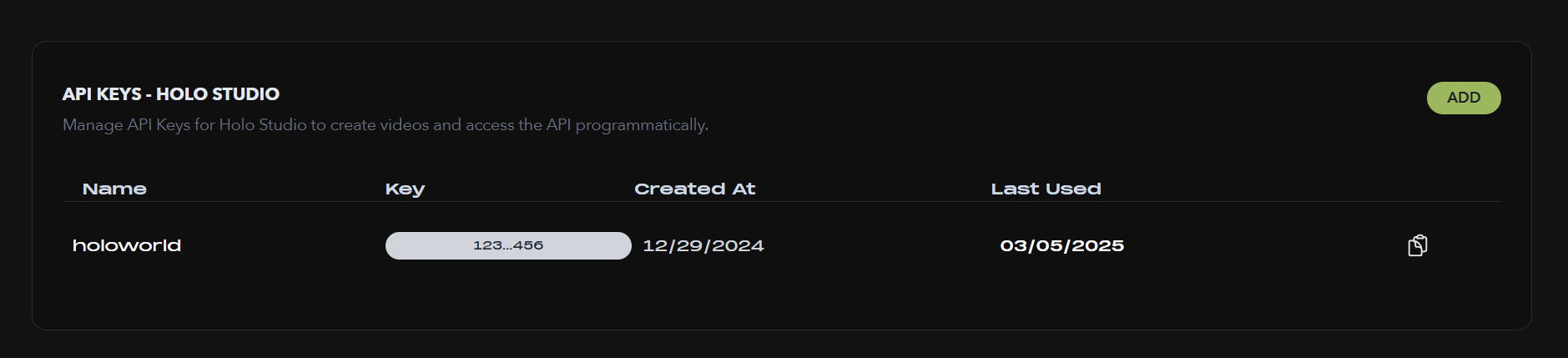
2. Navigate to your profile > settings
3. Copy the API key. From now on, this key be referenced as `YOUR_API_KEY`
### Before getting started
Ensure you have an Agent with a valid agent created on Holoworld (consult [Create Agent](/holoworld/agent-market/create-agent.md) for more information). Go to your agent's profile page and copy the Agent ID (the agent ID is the last part of the URL after the slash on the Agent's profile page)
From now on, this will be referenced as `YOUR_AGENT_ID.`
### API Endpoints
Send a message and receive a response `/api/chat`
Initiates a new video rendering job with the specified parameters.
* **URL:** `https://holoworld-llm.com`
* **Method:** `POST`
* **Headers:**
* `Content-Type: application/json`
* `x-api-key: YOUR_API_KEY`
**Request Body**
```json
{
"agentId": "YOUR_AGENT_ID",
"input": "Hey there how are you?",
"username": "YOUR_USERNAME",
"chatHistory": [
{
"speaker": "Human",
"content": "Hello!",
"sentAt": "2023-04-03T10:15:30Z"
},
{
"speaker": "AI",
"content": "Hi there! How can I help you today?",
"sentAt": "2023-04-03T10:15:35Z"
}
]
}
```
**Chat History Format**
The chat history should be an array of `ChatMessage` objects with the following structure:
```typescript
type ChatMessage = {
speaker: 'AI' | 'Human';
content: string;
sentAt?: string;
toolCalls?: ToolCall[];
isToolCall?: boolean;
};
type ToolCall = {
name: string;
content: string;
query?: string;
};
```
**Streaming Response**
The endpoint returns an HTTP stream containing a series of JSON chunks, each separated by double newlines (`\n\n`). Each chunk represents a different event in the response generation process.
**Streaming Chunk Format**
Each streaming chunk follows this structure:
```typescript
interface StreamingChunk {
type:
| 'tool_result'
| 'tool_call'
| 'completion'
| 'content'
| 'start'
| 'unknown'
| 'error'
| 'end';
name?: string;
content?: string;
id?: string;
index?: number;
args?: string;
messageId?: string;
reason?: string;
data?: string;
message?: string;
original?: string;
}
```
#### Chunk Types
* `start`: Indicates the beginning of a new message or response
* `content`: Contains a fragment of the agent's text response
* `tool_call`: Indicates the agent is invoking a tool, with tool name and arguments
* `tool_result`: Contains the result of a tool invocation
* `completion`: Signals completion of a message or tool operation
* `end`: Marks the end of the entire response
* `error`: Contains error information if something went wrong
* `unknown`: Used for unrecognized event types
#### Handling Streaming Responses
```typescript
/**
* Processes a chat stream from the API, handling different event types
* including content, tool calls, and tool results
*/
async function processChatStream({
characterId,
chatHistory,
newMessageContent,
username
}: {
characterId: string;
chatHistory: ChatMessage[];
newMessageContent: string;
username: string;
}) {
try {
// 1. Initialize API call and stream
const response = await fetchChatResponse(characterId, chatHistory, newMessageContent, username);
const { stream, isValid } = validateResponse(response);
if (!isValid) {
console.log('No stream available in response');
return { isValid: false, answer: '', newChatHistory: chatHistory };
}
// 2. Process the stream
const { newChatHistory } = await processStream(stream, chatHistory);
return {
isValid: true,
answer: getLatestContent(newChatHistory),
newChatHistory
};
} catch (error) {
console.error('Stream processing error:', error);
return { isValid: false, answer: '', newChatHistory: chatHistory };
}
}
/**
* Makes the API call to the chat endpoint
*/
async function fetchChatResponse(
characterId: string,
chatHistory: ChatMessage[],
newMessageContent: string,
username: string
) {
return await fetch('/api/chat', {
method: 'POST',
headers: {
'Content-Type': 'application/json',
'x-api-key': 'YOUR_API_KEY'
},
cache: 'no-store',
body: JSON.stringify({
agentId: characterId,
chatHistory: chatHistory,
input: newMessageContent,
username: username
}),
});
}
/**
* Validates the API response and gets the stream
*/
function validateResponse(response: Response) {
const stream = response.body;
return { stream, isValid: !!stream };
}
/**
* Process the stream data and update chat history
*/
async function processStream(stream: ReadableStream, chatHistory: ChatMessage[]) {
const reader = stream.getReader();
let newChatHistory = [...chatHistory];
// State tracking
const state = {
currentPhase: 'content', // 'content' | 'tool_calling' | 'post_tool'
currentContent: '',
toolQuery: '',
buffer: ''
};
try {
// Read the stream in chunks
while (true) {
const { done, value } = await reader.read();
if (done) {
console.log('Stream reading complete');
break;
}
// Update buffer with new data
state.buffer += new TextDecoder().decode(value, { stream: true });
// Process complete chunks
const chunks = state.buffer.split('\n\n');
state.buffer = chunks.pop() || '';
// Process each chunk
for (const chunk of chunks) {
if (!chunk.trim()) continue;
try {
const event = JSON.parse(chunk) as StreamingChunk;
console.log('Parsed event:', event);
// Handle the event based on type
newChatHistory = handleEvent(event, newChatHistory, state);
} catch (e) {
console.error('Error parsing JSON chunk:', e, 'Raw chunk:', chunk);
}
}
}
} finally {
reader.releaseLock();
}
return { newChatHistory };
}
/**
* Handle a single streaming event and update chat history accordingly
*/
function handleEvent(
event: StreamingChunk,
chatHistory: ChatMessage[],
state: {
currentPhase: string;
currentContent: string;
toolQuery: string;
buffer: string;
}
): ChatMessage[] {
switch (event.type) {
case 'start':
return handleStartEvent(chatHistory, state);
case 'content':
return handleContentEvent(event, chatHistory, state);
case 'tool_call':
return handleToolCallEvent(event, chatHistory, state);
case 'tool_result':
return handleToolResultEvent(event, chatHistory);
case 'completion':
return handleCompletionEvent(event, chatHistory, state);
case 'end':
console.log('End event received');
return chatHistory;
default:
console.log(`Unknown event type: ${event.type}`);
return chatHistory;
}
}
/**
* Handle the 'start' event type
*/
function handleStartEvent(
chatHistory: ChatMessage[],
state: { currentPhase: string; currentContent: string; toolQuery: string; }
) {
console.log('New message starting');
if (state.currentPhase === 'tool_calling') {
// If we were in tool calling phase, start a new message for post-tool content
state.currentPhase = 'post_tool';
state.currentContent = '';
state.toolQuery = '';
// Add a new message for post-tool content
return [
...chatHistory,
{
speaker: 'AI',
content: '',
sentAt: new Date().toString(),
}
];
}
return chatHistory;
}
/**
* Handle the 'content' event type
*/
function handleContentEvent(
event: StreamingChunk,
chatHistory: ChatMessage[],
state: { currentPhase: string; currentContent: string; }
) {
console.log('Content event received');
// Update the current content
state.currentContent += event.content || '';
// Update phase
state.currentPhase = 'content';
// Update the last message with new content
const lastIndex = chatHistory.length - 1;
return [
...chatHistory.slice(0, lastIndex),
{
...chatHistory[lastIndex],
content: state.currentContent,
},
];
}
/**
* Handle the 'tool_call' event type
*/
function handleToolCallEvent(
event: StreamingChunk,
chatHistory: ChatMessage[],
state: { currentPhase: string; toolQuery: string; }
) {
console.log('Tool call event received');
// If this is the first tool call in a content or post-tool phase
if (state.currentPhase === 'content' || state.currentPhase === 'post_tool') {
// Transition to tool calling phase
state.currentPhase = 'tool_calling';
// Start building the tool query
state.toolQuery = event.args || '';
// Add a new message for tool calling
return [
...chatHistory,
{
speaker: 'AI',
content: '', // Empty content for tool message
sentAt: new Date().toString(),
toolCalls: [
{
name: event.name || 'unknown_tool',
content: '', // Will be filled by tool result
query: state.toolQuery,
},
],
isToolCall: true,
}
];
}
// Update existing tool call
if (state.currentPhase === 'tool_calling') {
if (event.args) {
state.toolQuery += event.args;
}
// Find the last tool call message
const lastIndex = chatHistory.findLastIndex(msg => msg.isToolCall);
if (lastIndex === -1) return chatHistory;
const currToolCalls = chatHistory[lastIndex].toolCalls;
// Update the last tool call
return [
...chatHistory.slice(0, lastIndex),
{
...chatHistory[lastIndex],
toolCalls: [
...currToolCalls.slice(0, currToolCalls.length - 1),
{
...currToolCalls[currToolCalls.length - 1],
query: state.toolQuery,
},
],
},
...chatHistory.slice(lastIndex + 1),
];
}
return chatHistory;
}
/**
* Handle the 'tool_result' event type
*/
function handleToolResultEvent(event: StreamingChunk, chatHistory: ChatMessage[]) {
console.log('Tool result event received');
// Find the last tool call message
const lastIndex = chatHistory.findLastIndex(msg => msg.isToolCall);
if (lastIndex === -1) return chatHistory;
const currToolCalls = chatHistory[lastIndex].toolCalls;
// Update the tool call with result
return [
...chatHistory.slice(0, lastIndex),
{
...chatHistory[lastIndex],
toolCalls: [
...currToolCalls.slice(0, currToolCalls.length - 1),
{
...currToolCalls[currToolCalls.length - 1],
name: event.name || 'unknown_tool',
content: event.content || '',
},
],
},
...chatHistory.slice(lastIndex + 1),
];
}
/**
* Handle the 'completion' event type
*/
function handleCompletionEvent(
event: StreamingChunk,
chatHistory: ChatMessage[],
state: { currentPhase: string; currentContent: string; }
) {
console.log('Completion event received');
if (event.reason === 'tool_use') {
// Tool call completion
console.log('Tool use completion');
return chatHistory;
}
if (event.reason === 'end_turn' && state.currentPhase === 'post_tool' && state.currentContent.trim()) {
// Final message completion - ensure the current content is saved
const finalIndex = chatHistory.length - 1;
return [
...chatHistory.slice(0, finalIndex),
{
...chatHistory[finalIndex],
content: state.currentContent,
},
];
}
return chatHistory;
}
/**
* Extract the latest content from chat history
*/
function getLatestContent(chatHistory: ChatMessage[]): string {
if (chatHistory.length === 0) return '';
const lastMessage = chatHistory[chatHistory.length - 1];
return lastMessage.content || '';
}
```
**Standard vs. Tool Messages**
The API distinguishes between standard content messages and tool-invocation messages:
**Standard Message**
A regular message from the AI with text content that's displayed directly to the user:
```typescript
{
"speaker": "AI",
"content": "Hello! How can I help you today?",
"sentAt": "2023-04-03T10:15:35Z"
}
```
#### Tool Message
A special message type that indicates the AI has called a tool to perform a task:
```typescript
{
"speaker": "AI",
"content": "", // Usually empty for tool calls
"sentAt": "2023-04-03T10:16:00Z",
"toolCalls": [
{
"name": "calculator",
"query": "12 * 34 + 56",
"content": "464" // Result from the tool
}
],
"isToolCall": true
}
```
#### UI Considerations
In a chat interface, these message types should be displayed differently:
* **Standard Messages**: Displayed as regular chat bubbles with the AI's text content.
* **Tool Messages**: Displayed as a specialized UI component that shows:
* The tool being used (e.g., "Calculator", "Weather API")
* The query or input to the tool
* The result returned by the tool
Tool messages can be styled differently to visually distinguish them from regular content, such as using a different background color, adding an icon representing the tool type, or displaying them in a card-like interface with clear sections for the tool name, query, and result.
For example, a calculator tool might be displayed with a calculator icon, showing the calculation performed and its result in a structured format, while a weather tool might show forecast information with appropriate weather icons.
#### Example of collapsable tool query and content
#### Error Handling
The API may return error events in the stream. These should be handled appropriately:
```typescript
case 'error': {
console.error('Error event received:', event.message);
// Display appropriate error message to the user
break;
}
```